Harvest Integration
Automatically send Harvest invoices via Peppol e-invoicing using the Recommand integration. Step-by-step setup and configuration guide.
This guide explains how to set up and use the Harvest integration with Recommand's Peppol e-invoicing platform. The integration automatically sends your Harvest invoices via Peppol to your customers.
Overview
The Harvest integration connects your Harvest invoicing system with Recommand's Peppol platform, allowing you to automatically send invoices created in Harvest to your customers via the Peppol network. This eliminates the need for manual invoice processing and ensures compliance with Peppol standards.
Prerequisites
Before setting up the integration, ensure you have:
- A Recommand account on a paid plan
- A registered company in your Recommand account
- A Harvest account with invoicing enabled
Harvest Setup & Configuration
Before configuring the integration in Recommand, you need to set up your Harvest account and configure your invoices and clients.
1. Harvest Personal Access Token & Account ID
You need a Harvest Personal Access Token and your Account ID to connect the integration.
- Go to https://id.getharvest.com/developers
- Click "Create New Personal Access Token", give it a name and click "Create personal access token"
- Copy your Token and Account ID — you'll need both for the integration setup
Keep your Personal Access Token secure
Keep your Personal Access Token secure. You'll need it when configuring the integration in Recommand.
2. Configure Invoice Settings
Set an IBAN number in the notes of your invoices. You can configure a default note that will appear on all invoices:
- Go to your Harvest invoice configuration page: Invoices > Configure > Default values
- Add your IBAN number in the default invoice notes
This IBAN will be included in the Peppol invoice for payment processing.
3. Configure Your Clients
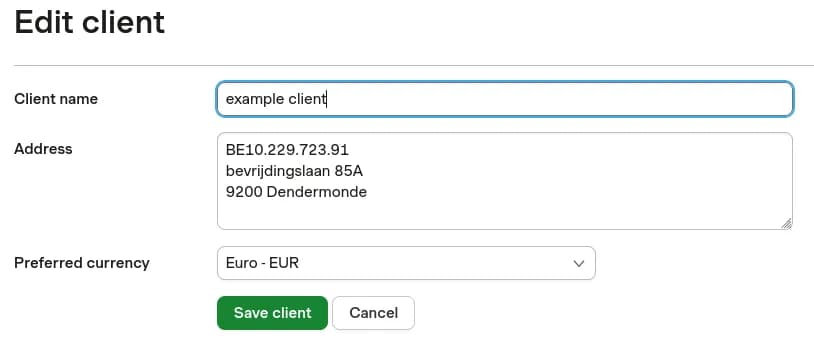
For each client you want to send Peppol invoices to, add their VAT number or Peppol address in the address field. You can manage clients by navigating to Manage > Clients.
- VAT Number: Only Belgian (BE) VAT numbers are supported.
- Peppol Identifier: For other countries or if preferred, add their Peppol identifier instead.
Clients for which no VAT number or Peppol address is set will not be sent via Peppol.
Identifier selection
Whichever identifier you choose, the invoice will be sent via Peppol using that identifier.
Example client configuration:
4. Add Client Contacts (For Email Fallback)
To use the email fallback feature (sending invoices via email when Peppol delivery fails), add a contact to your client in Harvest.
Client contact requirements
The contact must have a First Name, Last Name, and Email set in Harvest. Only the email is used by the integration; first and last name are required by Harvest but not used by the integration. Without these fields, you will encounter problems when sending invoices with the email fallback.
Recommand Setup
Once you've configured your Harvest account, you can set up the integration in Recommand.
Adding the Integration
- Log in to your Recommand dashboard
- Navigate to your company settings
- Go to the Integrations section
- Click Add Integration and select Harvest
Configuring Authentication
The Harvest integration uses Bearer token authentication:
- Enter your Personal Access Token from Harvest in the authentication field
- The token will be used to authenticate API requests to Harvest
Configuration Fields
Configure the following fields for the integration:
Account ID (Required)
Your Harvest Account ID. This is the same Account ID you copied when creating your Personal Access Token.
Email Fallback (Optional)
Controls whether invoices should be sent via email when Peppol delivery fails.
- Default:
true - When
true: If an invoice was not sent via email in Harvest (only marked as sent), the integration will add an email fallback to send the invoice via email to all client contacts when Peppol delivery fails - When
false: No email fallback is added
How It Works
The Harvest integration works as follows:
- Periodic Sync: The integration periodically checks Harvest for new invoices that have been marked as sent
- Invoice Processing: When a new invoice is found, the integration:
- Retrieves the invoice details from Harvest
- Extracts client information and identifiers (VAT number or Peppol ID)
- Converts the invoice to a Peppol-compliant format (Peppol BIS Billing 3.0)
- Sends the invoice via the Peppol network
- Email Fallback: If Peppol delivery fails and email fallback is enabled, the invoice is sent via email to all client contacts
- Status Updates: The integration tracks the status of each invoice transmission
Configuration Reference
Line Items Mapping
The integration maps Harvest line items to Peppol unit codes as follows:
- Items with the kind "Service" are mapped to Hours (HUR)
- All other items are mapped to Units (C62)
Tax Categories
Tax rates in Harvest are mapped to Peppol tax categories:
| Tax Rate | Treatment |
|---|---|
| 0% or null | Treated as Zero-rated (Code Z) |
| Greater than 0% | Treated as Standard-rated (Code S) |
Configuration Fields
| Field | Type | Required | Description |
|---|---|---|---|
accountId | string | Yes | Your Harvest Account ID |
emailFallback | boolean | Optional (default: true) | When true, if an invoice was not sent via email in Harvest (only marked as sent), the integration will add an email fallback to send the invoice via email to all client contacts when Peppol delivery fails. When false, no email fallback is added. |
Troubleshooting
Integration Not Syncing
If the integration is not syncing invoices:
- Check Authentication: Verify that your Personal Access Token is valid and has not expired
- Verify Account ID: Ensure the Account ID matches the one associated with your Personal Access Token
- Check Invoice Status: The integration only processes invoices that have been marked as "sent" in Harvest
- Review Integration Logs: Check the integration task logs in the Recommand dashboard for error messages
Invoices Not Being Sent
If invoices are not being sent via Peppol:
- Client Configuration: Verify that clients have either a Belgian VAT number or a Peppol identifier in their address field
- Recipient Verification: Ensure the recipient is registered in the Peppol network
- Check Integration Status: Verify the integration is active and running
Email Fallback Issues
If email fallback is not working:
- Client Contacts: Ensure clients have contacts with First Name, Last Name, and Email fields set
- Email Fallback Setting: Verify that
emailFallbackis set totruein the integration configuration - Invoice Status: The invoice must not have been sent via email in Harvest (only marked as sent)
Next Steps
Managing Companies
Learn how to create and manage company profiles in Recommand.
Sending Invoices
Understand how invoices are sent via the Peppol network.
Verifying Recipients
Check recipient presence and document support.
Working with Webhooks
Set up webhooks to receive notifications about invoice status.